
As an operator, you can cancel or update your customers' subscriptions at any time, following the steps below:
- Go to the section titled "Customers"
- Search for the desired customer in the search bar
- Click on their username
- Go to the section titled "Plans & Billing"
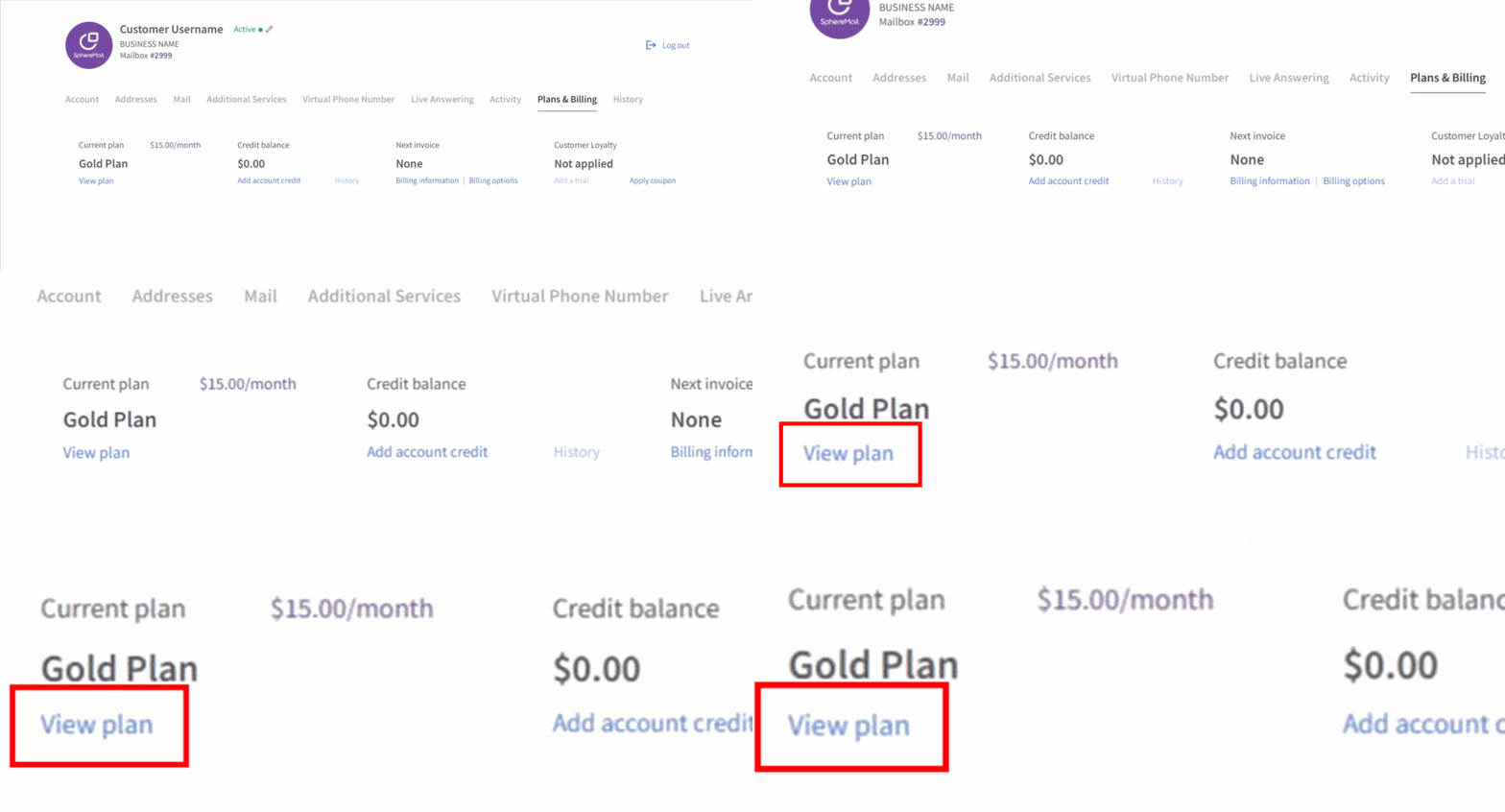
- Go to the tab titled "Current plan"
- Click on "View plan"
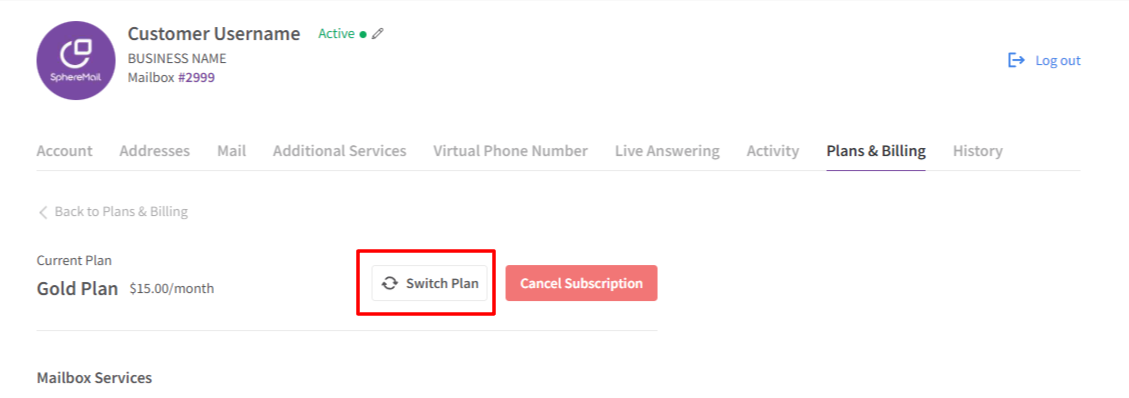
- You will have the option to either "Switch Plan" or "Cancel Subscription"
To update or change your customer's subscription:
- Click on "Switch Plan"
- You will be redirected to a list of all available plans (including hidden ones), so you can choose the appropriate subscription based on the customer's request.
- Click on "Upgrade" or "Downgrade" for the needed subscription
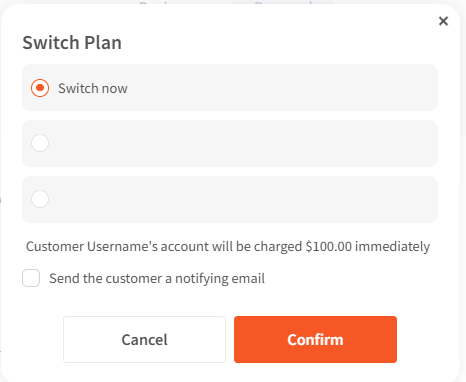
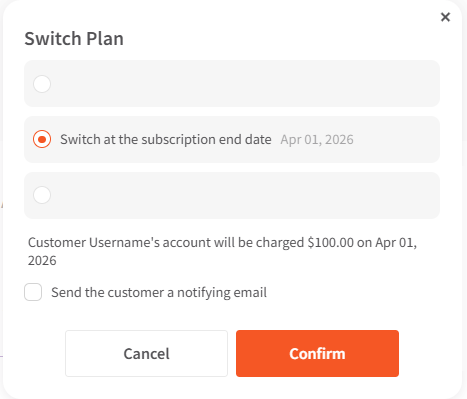
- Choose one of the three available options:
- Switch now: to update the subscription immediately. The customer will be issued credit for any unused amounts of their currently paid subscription.
- Switch at the subscription end date: the customer's current subscription will auto-update to the new one on the subscription renewal date. No credit will be issued to the customer in this case.
- Manually set a date for switching the plan: to set any date you'd like. The customer will be issued credit for any unused amounts of their currently paid subscription.
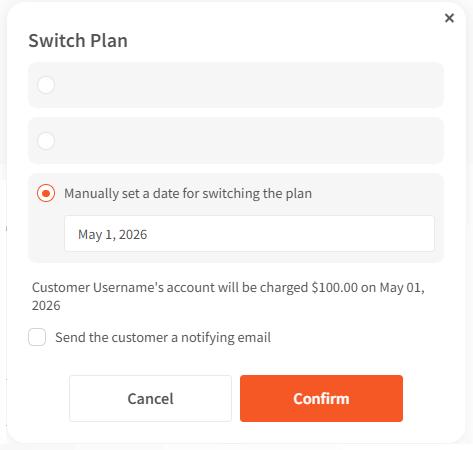
- Switch now: to update the subscription immediately. The customer will be issued credit for any unused amounts of their currently paid subscription.
- Check the box if you'd like the customer to receive an email notification when their subscription is updated.
- Click "Confirm" to apply the changes.
To cancel your customer's subscription:
- Click on "Cancel Subscription"
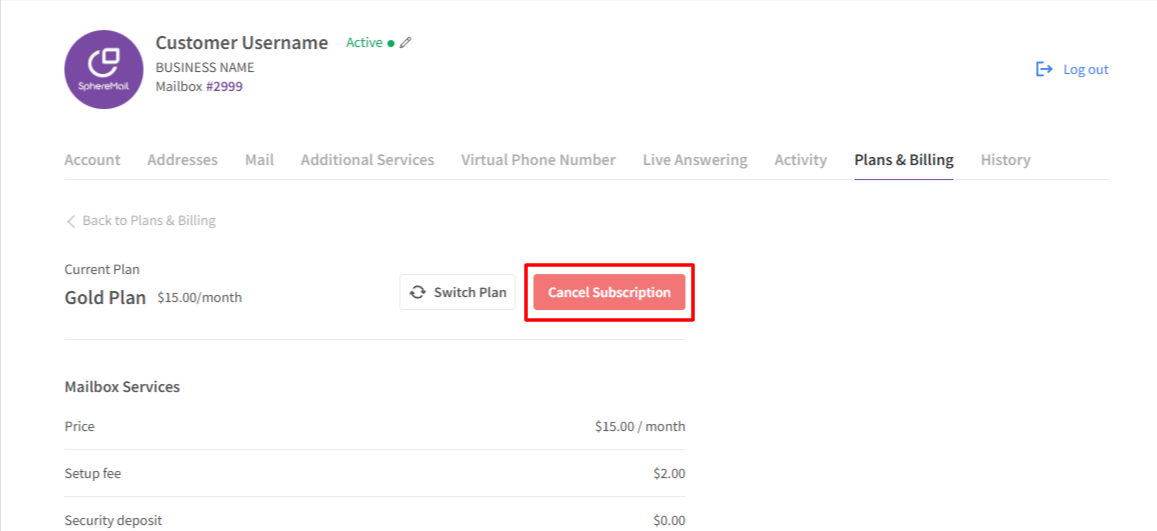
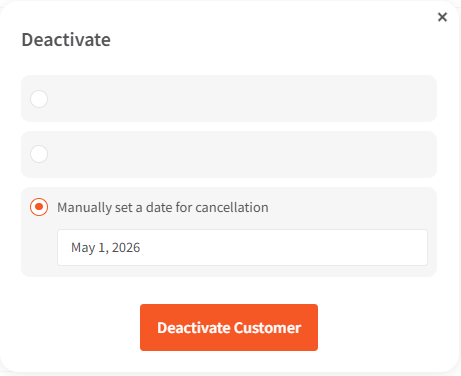
- Choose one of the three available options:
- Cancel now: to deactivate the account immediately.
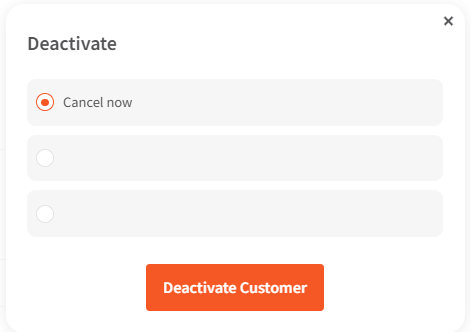
- Cancel at the subscription end date: to automatically deactivate the account on the last day of the current subscription.
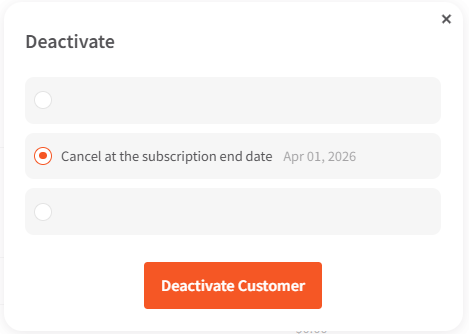
- Manually set a date for cancellation: to set any date you'd like for the cancellation to take effect.
- Cancel now: to deactivate the account immediately.
- Click "Confirm" to apply the changes.