
If your CMRA is based in the state of California, your active customers are required to sign the California B&P Code § 17538.5 Acknowledgement, along with the PS 1583 Form, before they can request or receive your services.
Your customers can do that easily, following these steps:
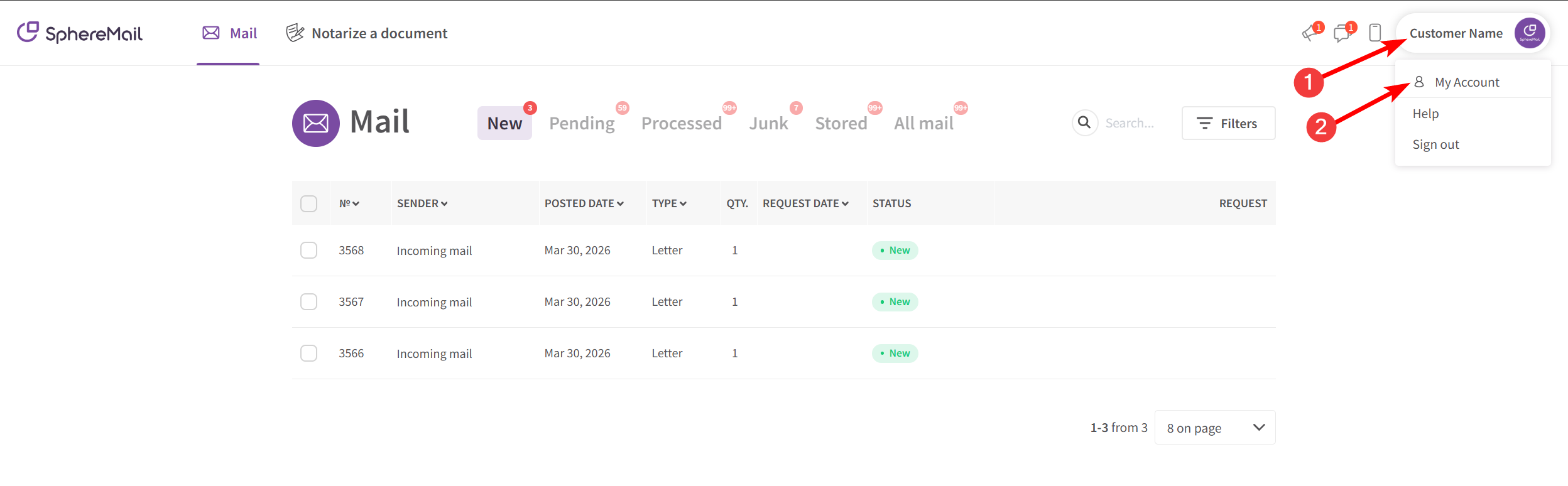
- Click on their profile picture at the top right corner and choose "My Account" from the menu
- Under the "Account" tab, find the section titled "You provided"
- Click on the green pen icon next to "CA BPC § 17538.5"
Alternatively, they can click "sign now" in the banner to start the process immediately.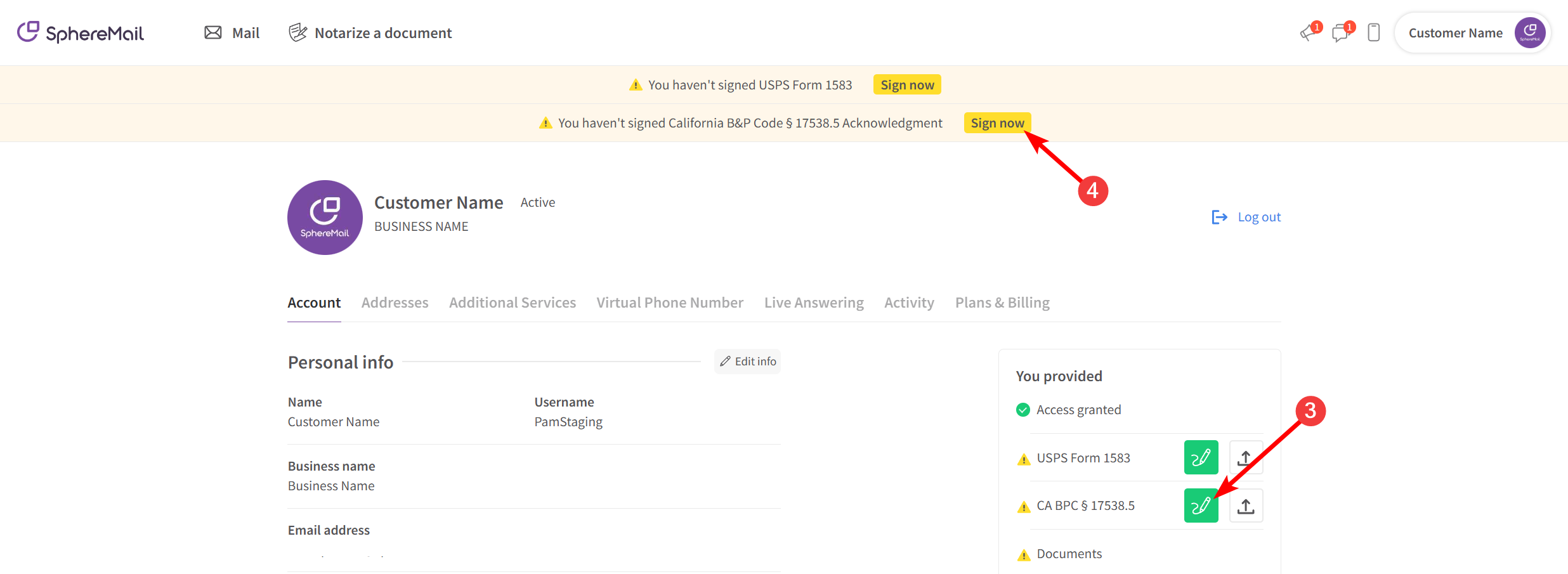
- A pop-up window will appear, where they'll first need to read the code and acknowledgment sections
- Then check the box stating "I hereby agree to accept and abide by the foregoing requirements."
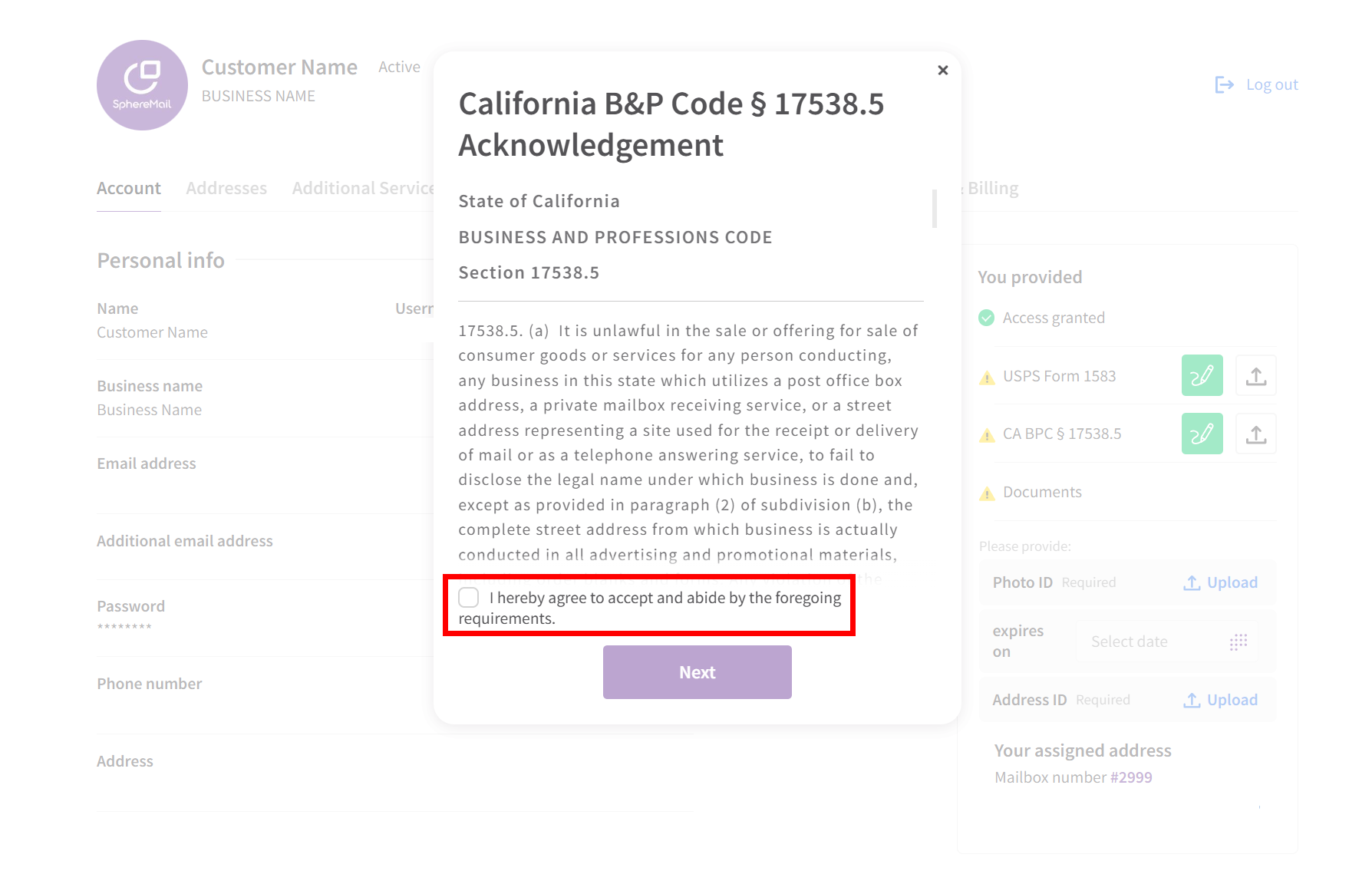
- Click "Next"
- All required information will be auto-populated in this step (first and last names, home address, and today's date); the customer simply needs to review and edit it if needed
- Then use the signature pad to add their signature
- Click "Generate document"
- A final window will appear, allowing them to review their document before submitting it to the operator for approval.
- If needed, they can click "Edit Document" to go back and make any necessary changes.
- But if everything looks good, they should click "Submit for Approval" to submit their document to the operator for review.
You'll receive an email notification whenever a customer submits their signed CA BPC § 17538.5 Document. And to review and approve it, you can follow these steps:
- Click on the "Customers" tab
- Click the username hyperlink for the customer's account you need.
- Head to the customer's "Account" tab, scroll down, and go to the section titled "Account Verifications".
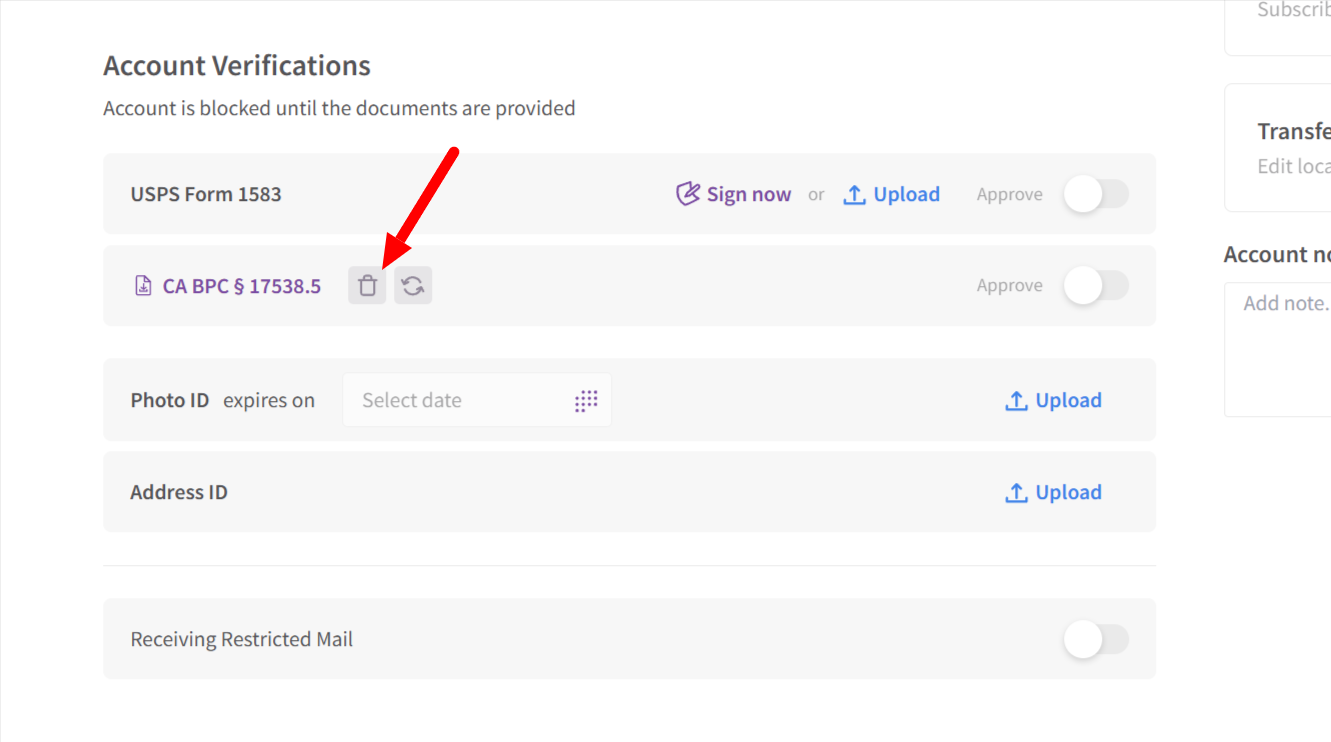
- Click on the hyperlinked CA BPC § 17538.5 to review the signed document
- If everything looks good, enable the toggle to approve it.
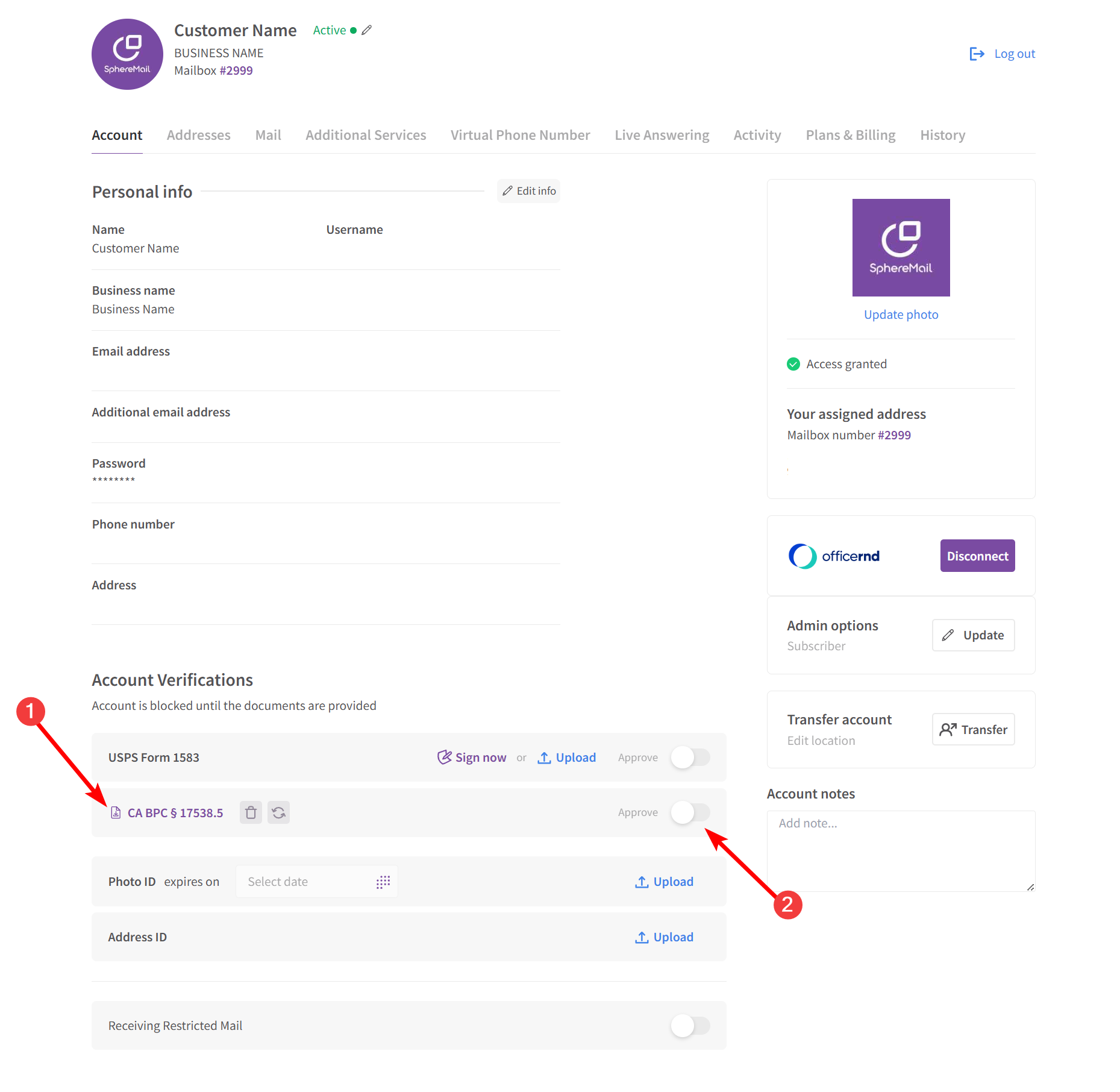
- If you need the customer to redo it, then click on the trashcan icon to delete it, that'll prompt the customer to restart the process.
Please note that operators can also upload the document if you already have a valid copy and don't need your customer to go through the process. To do so, you follow the same steps:
- Click on the "Customers" tab
- Click the username hyperlink for the customer's account you need.
- Head to the customer's "Account" tab, scroll down, and go to the section titled "Account Verifications".
- Click on the upload icon next to CA BPC § 17538.5
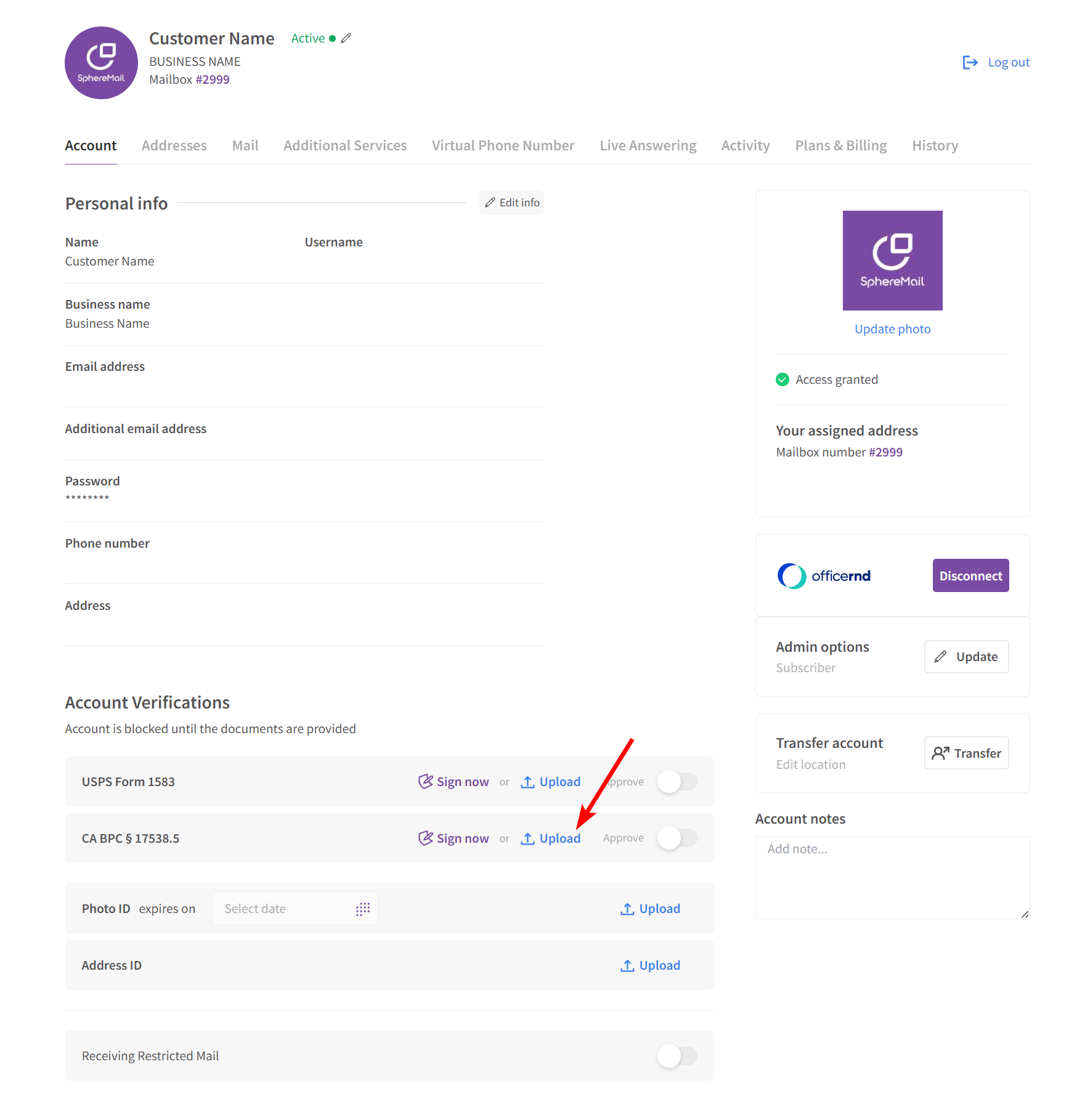
- Choose the PDF file from your device
- Once a file is uploaded by you, as the operator, it's automatically approved by our system.*
*If the customer uploads the documents on their own, the documents are not automatically approved in this case. You'll be notified via email first to log in and verify them, and you'll have the option to approve or reject the documents as stated above.